Payment Links
Build a cart from your products, prefill the buyer's details and send one private link they can pay.
A payment link is a private checkout with a cart you've prepared. You choose the products, prices and quantities, optionally pick who the buyer is, and send them the link. When they open it, the cart is ready and their details are filled in. They pay, and the order is recorded like any other.
Use a payment link when the purchase is agreed before the buyer sees the checkout: a quote after a sales call, a custom bundle for one client, or a set of products you'd otherwise invoice by hand.
How it works
- The cart holds products you already sell, at prices you've already set on them. To charge a different amount, add a price to the product first.
- Every time the link is opened, a fresh cart is built from the products you chose. Two people opening the same link never share a cart.
- A payment link starts with the checkout settings of the first product in its cart, on the Modern template. You can change all of them on the payment link without affecting the product's own checkout.
- The order, the buyer's access, emails, webhooks and integrations work the same as a normal purchase of those products.
A payment link is different from a product checkout. A product checkout is a public page for one product that anyone can buy from. A payment link is for a specific purchase, usually for one buyer.
Creating a payment link
Build the cart
Go to Checkouts, click Create, and choose Payment link.
Click Add a product to see your products and their prices, or type to narrow the list by product name, price name, amount or currency. Pick one and it's added to the cart. Each product is listed once per price, with its amount, currency and how it's billed.
In the cart, change a quantity with − and +, or remove a product with ×. Picking a product that's already in the cart raises its quantity by one.
Choose the currency and coupon
Below the cart, Charge in is the currency the buyer pays in. It starts as the currency of the first product's price. Prices in other currencies are converted, the same way a multi-currency checkout converts them.
Click Add coupon to apply a coupon code when the buyer opens the link. The coupon's own rules still apply, such as its expiry, usage limit and the products it's valid for.
Create it
Click Create payment link. The payment link is created as a draft and opens in the editor, with a live preview of the checkout.
Choose the customer (optional)
In the editor, open Cart. Under Customer, click Choose a customer to pick one of your customers, or type to search by name or email. To send it to someone new, click Add a new customer and enter their email and name.
When the buyer opens the link, the checkout form is filled in with their details. They can still change them.
Set a limit or an expiry (optional)
Under Settings:
- Turn on Limit the number of payments and set Maximum payments to stop the link after that many purchases. Set it to 1 for a link that can only be paid once.
- Turn on Set an expiry date and choose Expires on to stop the link at the end of that day.
Click Save.
Publish and send
Click Publish at the top of the editor, then Copy link and send it to your buyer.
Checkout settings
The editor has the same sections as a product checkout: Page Settings, Form Fields, Payment Processors, Language, Currencies & Regions, Countdown Timer, Testimonials and Scripts & Pixels. They only apply to this payment link.
Order bumps aren't available on a payment link. Add the products to the cart instead.
After publishing
The cart, the customer and the limit and expiry can't be changed once a payment link is published. The checkout settings can still be changed. To send a different cart, create a new payment link.
A payment link has one of these statuses on the Payment links tab of the Checkouts page:
| Status | Meaning |
|---|---|
| Draft | Not published yet. The link doesn't work. |
| Active | Published. The link can be paid. |
| Completed | The link has been paid the number of times you allowed. It no longer works. |
| Canceled | You canceled it. The link no longer works. |
A link also stops working after its expiry date. When a buyer opens a link that no longer works, they see a page-not-found message.
To stop a link, open the row's menu on the Checkouts page and click Cancel. Canceling can't be undone. Payment links can't be deleted, so the record of what you sent stays in your account.
What the buyer sees
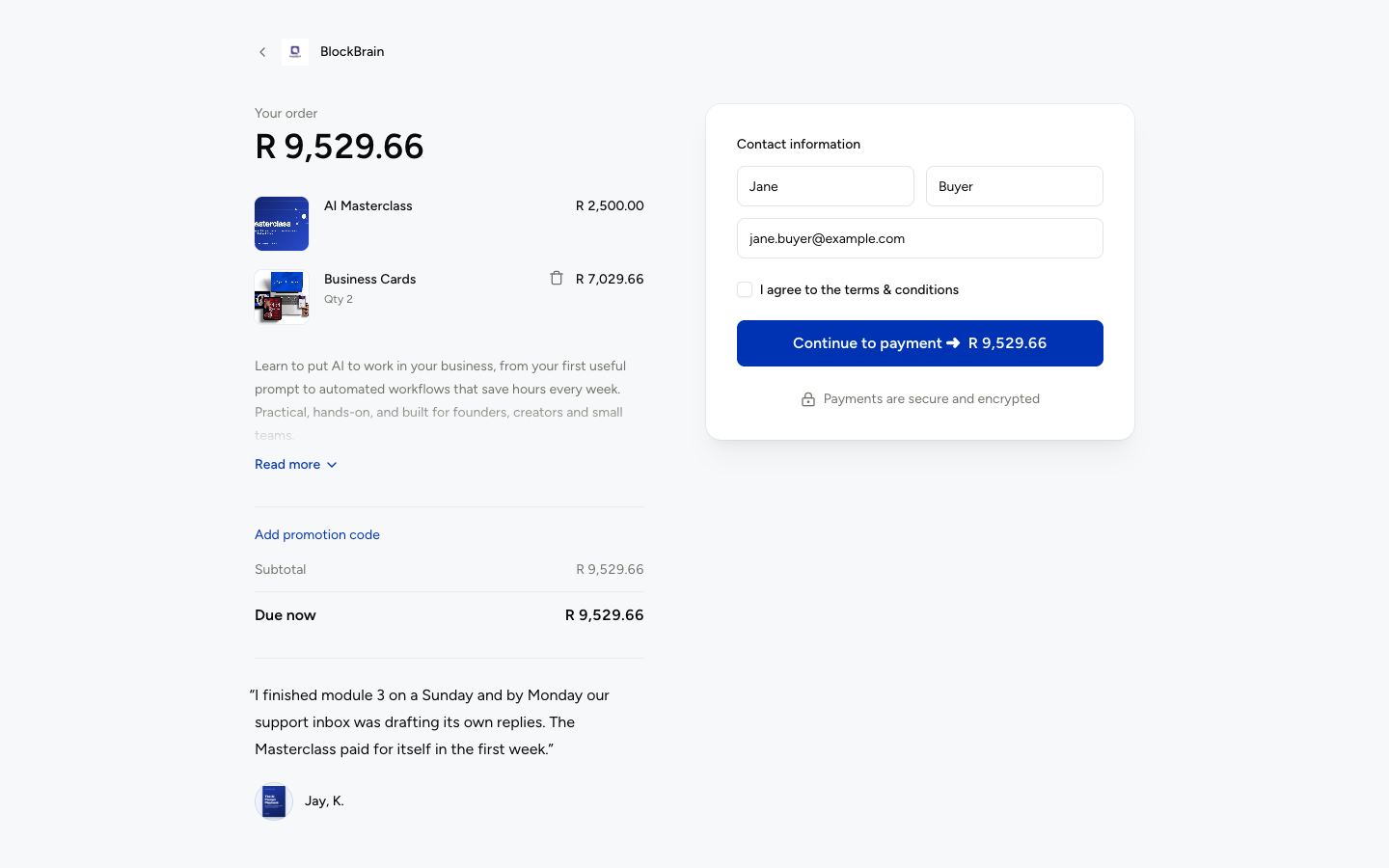
The buyer opens the link and sees the cart with the products and quantities you chose, in the currency you set, with the coupon applied and their details filled in. They pay with any of the payment processors on the checkout.
Like any cart, the buyer can remove products from it before paying. Depending on the template, the first product in the cart can't be removed.
After paying, the buyer is redirected the same way as on the first product's checkout, unless you changed the redirect in Page Settings.
Creating payment links with an AI assistant
A connected AI assistant can create and send payment links for you. For example:
- "Create a payment link for jane@example.com with 2 × Business Cards and the AI Masterclass, single use, expiring on Friday."
- "Publish it and give me the link."
See What you can do for the tools it uses.
Product Checkouts
Every CheckoutJoy product gets a hosted Product Checkout page with a unique link to share with customers. How it differs from a custom checkout page.
Checkout Pages
Set up a custom checkout page in CheckoutJoy: settings, multiple currencies, country restrictions, custom scripts and pixels, and the success redirect URL.